
blog post
How to Verify a Twilio Number in Meta WhatsApp Manager When SMS Fails

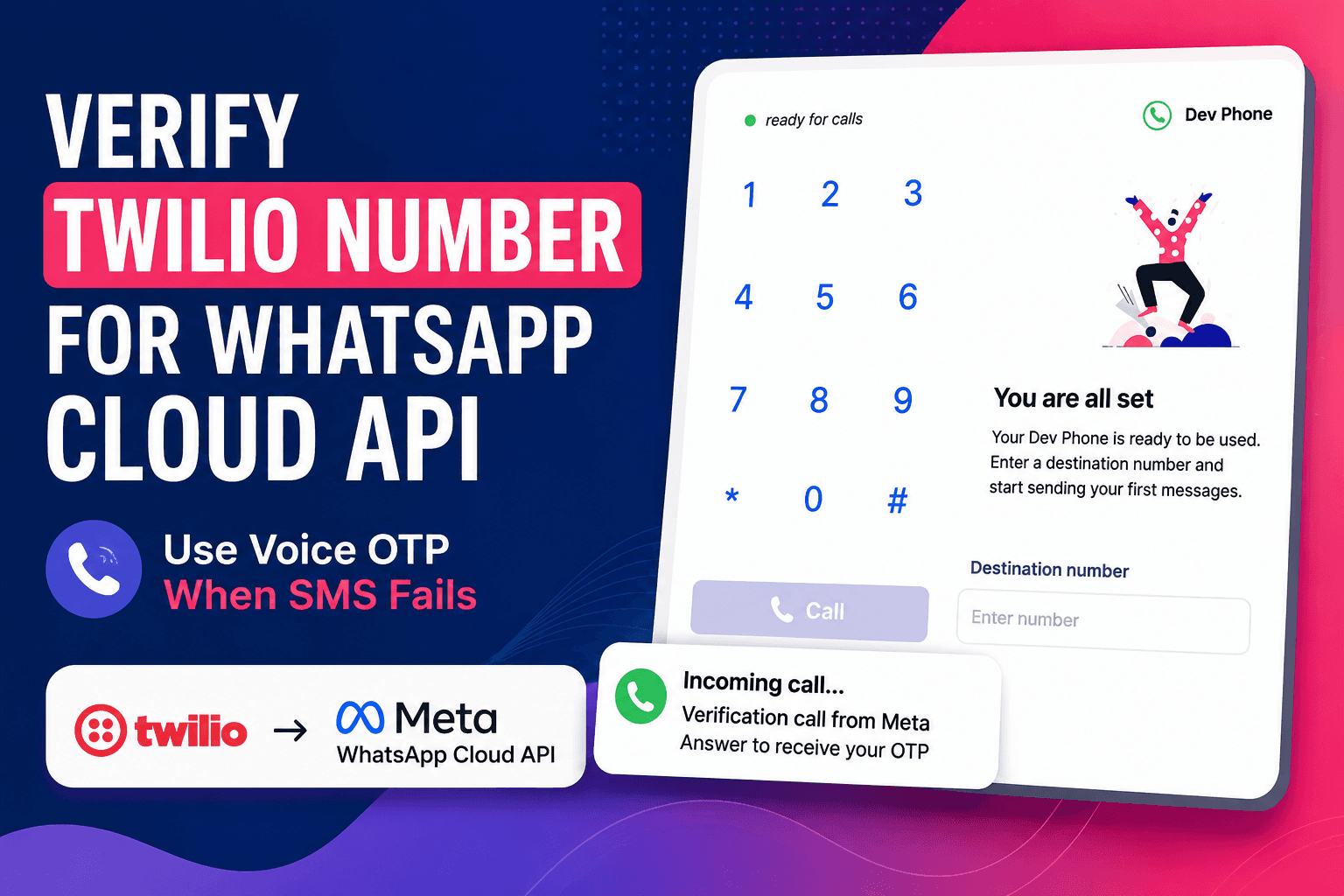
Learn how to verify a Twilio number in Meta WhatsApp Manager using voice OTP when SMS verification fails.
Verifying a phone number for WhatsApp Cloud API is usually straightforward until a Twilio number is involved.
A common issue appears during Meta phone verification: the OTP SMS never arrives, repeated retries fail, and eventually the number gets temporarily rate limited.
At first, it looks like the number itself is the problem.
In most cases, it isn’t.
The issue is the verification method.
When Meta sends OTP codes through SMS, virtual numbers can struggle to receive them reliably. Twilio numbers are especially inconsistent with short-code authentication messages from large platforms.
The good news is that there is a simple workaround.
Instead of relying on SMS verification, Meta also supports phone-call verification. Combined with Twilio Dev Phone, this makes it possible to verify a Twilio number in just a few minutes without needing a physical SIM card.
This guide explains exactly how to do it.
Why SMS Verification Fails on Twilio Numbers
When adding a phone number inside Meta WhatsApp Manager, Meta asks for verification through either:
- SMS verification
- Phone call verification
Most developers naturally try SMS first.
That usually leads to the same result: nothing happens.
The OTP never arrives.
This happens because many virtual or VoIP numbers do not reliably receive automated short-code SMS messages. Large platforms like Meta often send authentication through routes that are filtered, delayed, or unsupported for some virtual numbers.
The result is usually frustrating:
- OTP code never arrives
- Repeated retry attempts fail
- Meta eventually triggers a temporary rate limit
- The number gets stuck in verification
At this point, many developers assume Twilio numbers cannot be used with WhatsApp Cloud API.
That assumption is incorrect.
The problem is usually SMS delivery, not Twilio compatibility.
The Workaround: Use Meta Voice Verification Instead
A more reliable option is to use Meta’s voice-call verification.
Instead of sending a text message, Meta places an automated phone call and reads the verification code aloud.
Twilio virtual numbers generally handle inbound voice calls much more reliably than SMS authentication.
The only challenge is answering the call.
That is where Twilio Dev Phone helps.
Twilio Dev Phone is available inside the Twilio Console and works as a browser-based softphone. Once connected to a Twilio number, incoming calls can be answered directly from the browser without configuring additional call routing.
In practical terms, this means there is no need for SIP setup, forwarding rules, extra devices, or a physical SIM card.
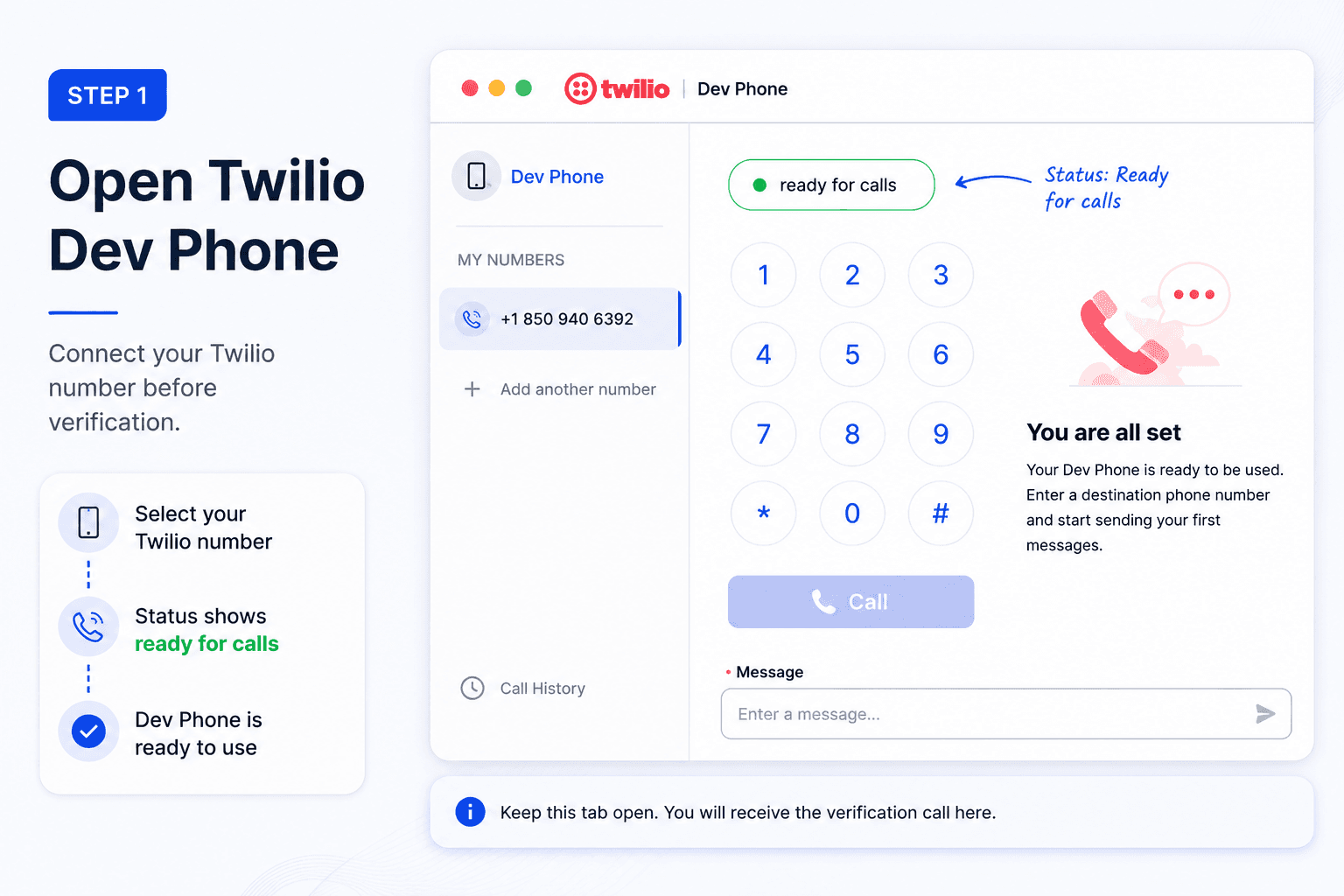
Step 1: Open Twilio Dev Phone
Start by logging into the Twilio Console.
Search for Twilio Dev Phone and open it.
Once inside, pair the Dev Phone with the same Twilio number that will be used in Meta WhatsApp Manager.
After setup, keep the browser tab open because this is where the verification call will arrive.
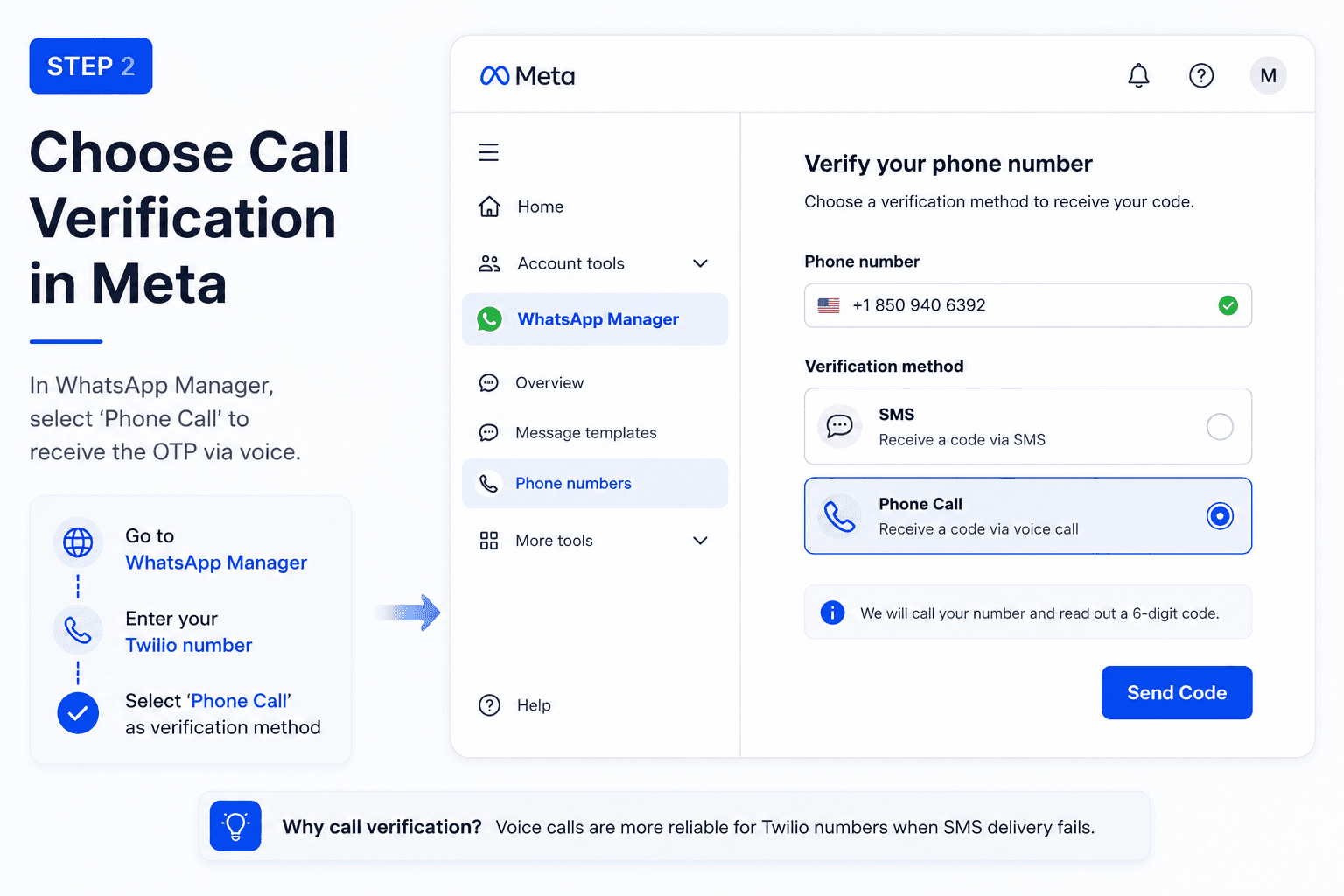
Step 2: Start Verification in Meta WhatsApp Manager
Go to Meta WhatsApp Manager and begin adding the phone number.
When Meta asks for verification:
- Enter the Twilio number
- Skip SMS verification
- Select Phone Call instead
- Request the verification code
Choosing SMS again will usually recreate the same delivery problem.
Voice verification is generally much more reliable for virtual numbers.
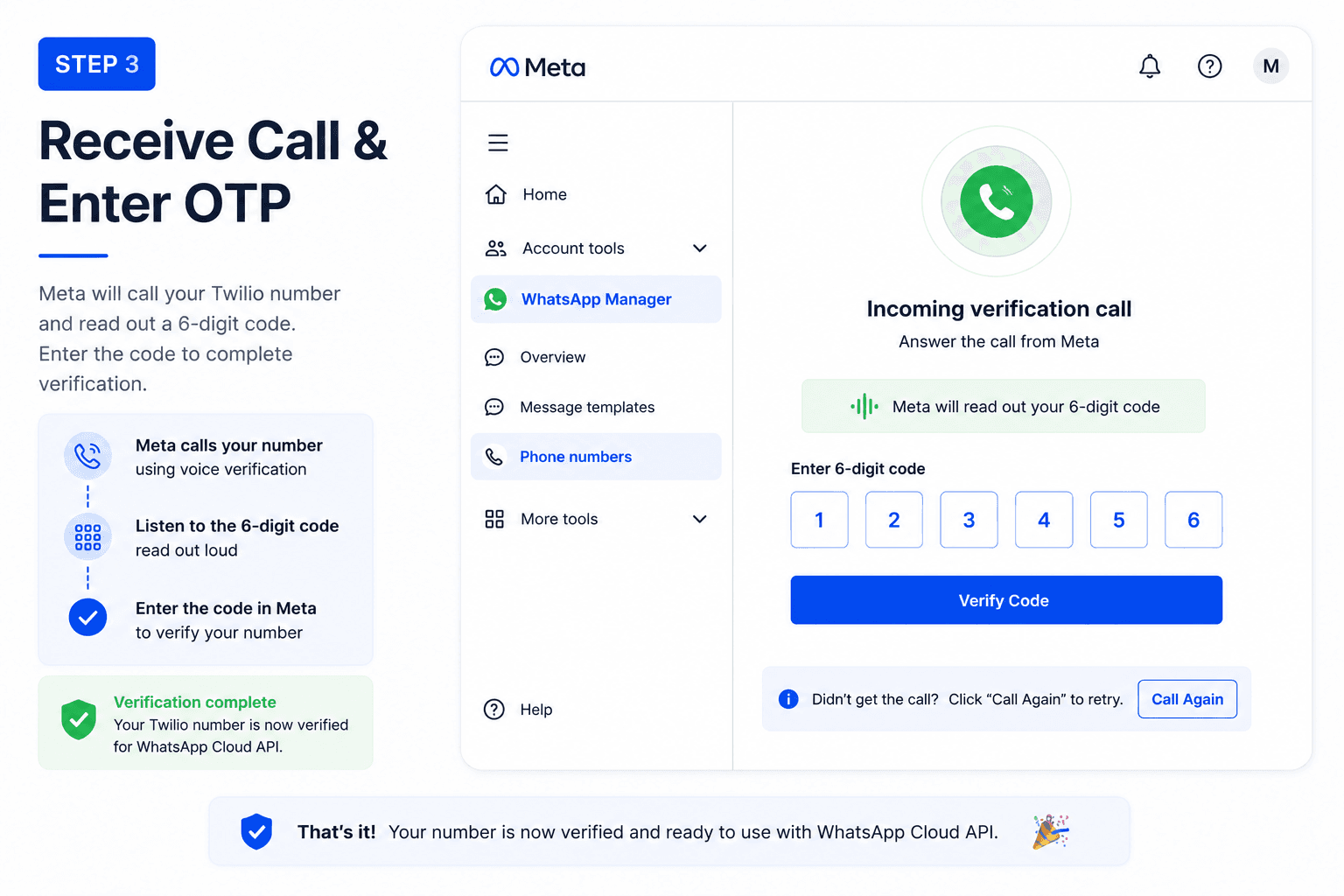
Step 3: Answer the Verification Call
Switch back to the browser tab running Twilio Dev Phone.
Within a few seconds, Meta should place an automated call to the number.
Accept the call directly inside the browser.
An automated voice system will read out the OTP.
Enter the code into Meta WhatsApp Manager.
Once submitted, the number should verify successfully.
Why This Method Works
The difference comes down to how SMS and voice traffic are handled.
Short-code authentication messages are often filtered or inconsistently delivered to virtual phone numbers. Voice calls, on the other hand, tend to work much more reliably with Twilio numbers.
Because of this, switching the verification channel from SMS to phone call often solves the issue immediately.
For developers building WhatsApp automation, webhook systems, or AI agents, this shortcut removes one of the more frustrating setup blockers.
Instead of waiting on carrier-based SIM cards or troubleshooting Meta verification failures, testing can move directly into a production-ready environment.
Common Mistakes to Avoid
1. Repeatedly Clicking “Resend Code”
After several failed attempts, Meta may temporarily rate limit the verification process.
If SMS fails more than once, switching directly to phone verification is usually the better option.
2. Pairing the Wrong Number in Twilio Dev Phone
Make sure the Twilio Dev Phone is connected to the same number being added inside Meta WhatsApp Manager.
Otherwise, the incoming verification call will never appear.
3. Closing the Browser Tab
Twilio Dev Phone must remain active while waiting for the call.
Closing the tab too early can interrupt the verification process.
Frequently Asked Questions
Can a Twilio number be used with WhatsApp Cloud API?
Yes. Twilio numbers can be verified and connected to a Meta WhatsApp Business Account, provided the number meets eligibility requirements and verification succeeds.
Why does Meta SMS verification fail on Twilio numbers?
Many Twilio numbers do not consistently receive short-code authentication messages from large platforms. Voice verification is often more reliable.
Is a physical SIM card required?
No. A Twilio number combined with Twilio Dev Phone can complete verification without a separate mobile SIM.
How long does the process take?
If voice verification works immediately, the entire process usually takes less than five minutes.
Final Thoughts
SMS verification failures in Meta WhatsApp Manager are common when using virtual phone numbers.
Fortunately, there is a straightforward workaround.
By switching from SMS to phone-call verification and using Twilio Dev Phone to receive the OTP, a Twilio number can usually be verified quickly without additional hardware or setup.
For anyone building WhatsApp automation, AI agents, or production webhook systems, this approach saves time and avoids unnecessary debugging during setup.
AI-native business systems
Bring a niche, or bring a workflow.
If you run the business, we build the system around it. If you sell into a niche, we build the system behind your offer.
PolarBuild case study →You sell the niche. We build the system.
We never compete for your end clients. One partnership conversation. You fulfil the same system across the accounts in your niche.
Free POC before dedicated software
A three-day sales demo of the system for your vertical before any large software investment. Implementation starts only when someone in that niche pays.
Replicate the niche, not a one-off build
UK dental becomes US dental with a new local partner and new integration targets. Same system thesis, new market.